- Thomas' Webjar full of joy -
| Author: | Thomas Langewouters |
|---|---|
| description: | Why I use the Vim editor How I get the job done, using Vim |
Note
Even if you don't like Vim, you might still want to try Cream, a distribution of Vim witch retains lots of the powerful features, but neutered to the point of mode-less editing.
Note
Old-school Vim users will be happy to hear that there is a Firefox addon that brings vi workflow to the browser, read more about it in the Vimperator section of this page.
-- One board to fit them all
First things first...
I switched from my country's keymap (AZERTY) to QWERTY years ago. Even when everybody else is using another layout, using QWERTY proved to be as I suspected: a bless.
Important characters ([], {}, ~!@#$,...) are put in very awkward places on the AZERTY layout. When working on a UNIX machine or coding (this is not even specific to the C language) this results in unnecessary stress on your hands. An example is the use of ALT-GR to type the @ and \ characters.
Switching to QWERTY is not that hard. Apart from the obvious fact that AQ ZW and other letters are switched, you do have to re-train your reflexes for a lot of symbols.
Vi's keystrokes were designed for the QWERTY layout, something I noticed quickly when learning Vim back in the day.
asdf jkl;
Why do I have to move my hands when I'm working with the computer? I don't like using the cursor keys in my shells, but I just couldn't get used to readline's vi-mode. Perhaps I should give it another try.
Instead of hitting the ESC key, you can use Ctrl-[. The Ctrl key is placed horrible on standard keyboards. If you don't have a use for the shiftlock key, you can replace its function with a second ctrl key by putting this line in the keyboard section of your /etc/X11/xorg.conf file.
Option "XkbOptions" "ctrl:nocaps"
Now you can use both pinkie fingers instead of reaching out for ESC.
On Ubuntu intrepid, go to keyboard preferences -> layouts -> other options -> Ctrl key position -> make capslock an additional Ctrl.
QWERTY keyboards don't have mappings for letters with accents, but Vim makes it very easy to type them. Just type
:set keymap=accents
You can get a list of the mappings by executing
:lmap
When I'm entering French (for instance), Vim's spelling checker comes in very handy:
:setlocal spell spellang=fr
Enabling checking for a specific language (or multiple) can be done by including the folowing line in your file (I use it extensively with my writings in Restructured Text):
/* vim : spell:spelllang=en */ .. vim : spell:spelllang=nl
I believe I had to pull the dutch spell file from vim.org because Ubuntu doesn't ship them.
You can set spelllang=nl,en in your ~/.vimrc so you only have to do :set spell.
To enable syntax highlighting, add something like this to your ~/.vimrc
colo koehler set nu! syntax on
You can do regex searches with /. I set the match colors to something a bit more eye-catching:
hi Search ctermfg=red ctermbg=green hi Todo ctermbg=blue ctermfg=red set hlsearch
It's worth the time to learn regex replaces if you have to do structured substitution on several lines:
My default configuration (add to ~/.vimrc):
set ts=8 set sts=4 set shiftwidth=4 set expandtab
Documentation (obtained using :help);
'expandtab' 'et' boolean (default off)
In Insert mode: Use the appropriate number of spaces to insert a <Tab>. Spaces are used in indents with the '>' and '<' commands and
'tabstop' 'ts' number (default 8)
Number of spaces that a <Tab> in the file counts for. Also see :retab command, and 'softtabstop' option.
'softtabstop' 'sts' number (default 0)
Number of spaces that a <Tab> counts for while performing editing operations, like inserting a <Tab> or using <BS>. It "feels" like <Tab>s are being inserted, while in fact a mix of spaces and <Tab>s is used.
If you run shell commands on the Ex prompt (ESC,:) like :!, the character % gets substituted with the filename of the buffer that has focus. The same goes for %:p:h, this refers to the directory the file is in.
This is really handy if you want to do repetitive stuff like checking if a file well formed (pyflakes does this for python source code), or uploading a html file with ftp (pub is a lftp bookmark).
:!pyflakes % :!sql < % :!echo put % |lftp pub
You can open the matching headerfile of a C source file with:
:sp %:t:r.h
(replace .h with .c to jump from header to source)
You can browse folders with Vim. To open the folder of the active buffer you can do :sp %:p:h.
You can open a file in a new buffer with :sp secondfile, or a new with C-w n. Afterwards you can move focus to another buffer with C-w h/j/k/l.
Tabs are opened with :tabnew secondfile and you can cycle between them using gt and gT.
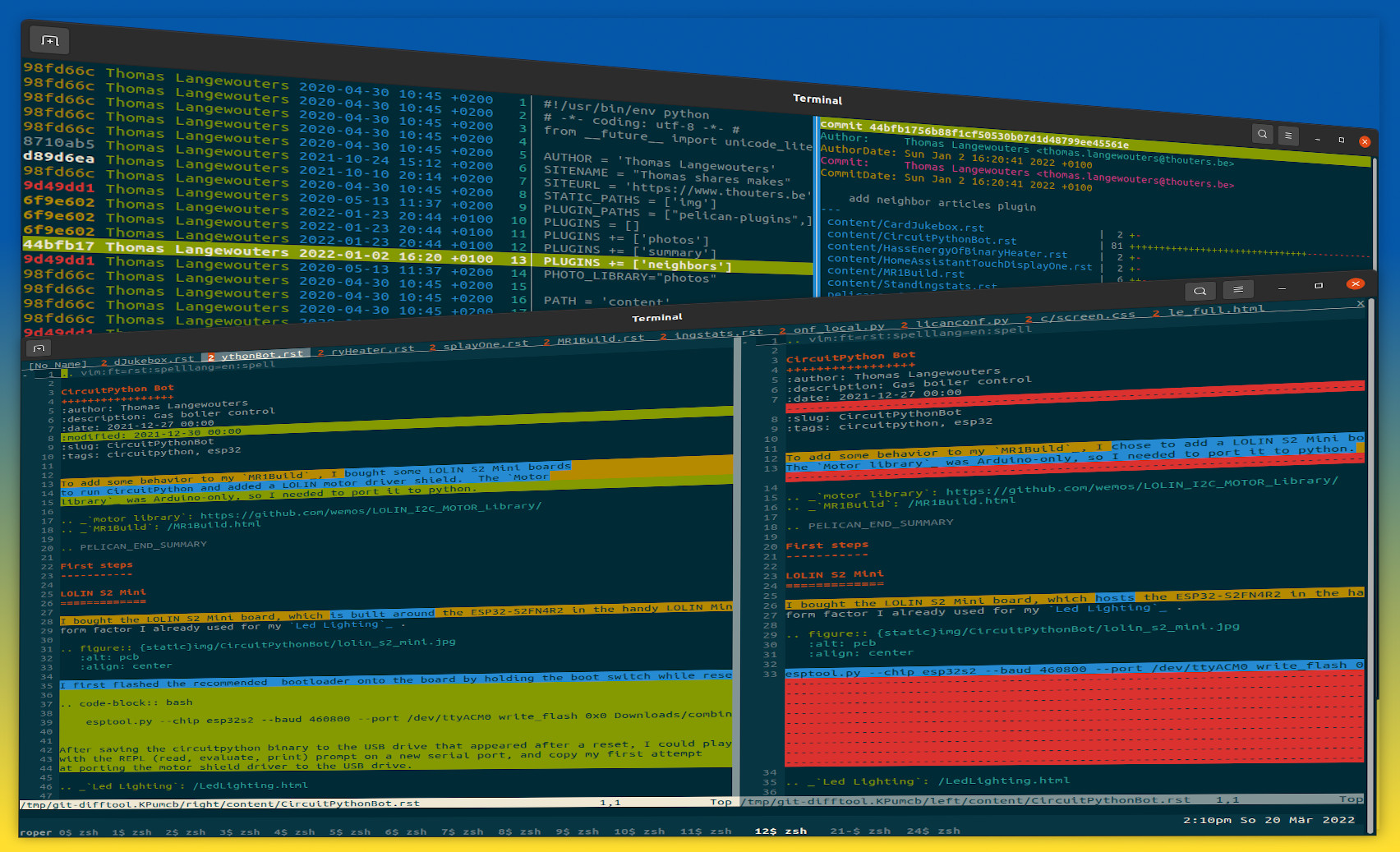
You can get a nice visual diff by running
:vert diffsplit otherfile
Or using the vimdiff command.
Run ctags-exuberant *.[ch] (or *.py) to build the tags file. You can now jump to definitions of the word under the cursor by hitting C-] and C-w ] (open in a new buffer).
Vim can do basic completion of words that are already in the buffer: C-n.
Using this regex match the parts of a line that pass 80 characters are colored black on yellow.
highlight rightMargin term=bold ctermfg=black ctermbg=yellow match rightMargin /.\%>80v/
Wildmenu will show tab-completion results of the ex command line above the commandline. Use left/right arrows to pick easily.
set modeline set wildmenu
You can save a syntax-highlit copy of the current buffer as an HTML file using the :TOhtml command. I have these two preferences
let html_use_css = 1 let use_xhtml = 1
The taglist plugin provides a handy list of function and variable names. Install it by copying the plugin and helpfile from the zip archive to ~/.vim/ Add the following lines to your ~/.vimrc to automatically enable the taglist when Vim starts.
let Tlist_Use_Right_Window = 1 let Tlist_Auto_Open = 1
Vimperator's designer(s) used a brilliant way to 'click' hyperlinks on webpages; If you hit f (or F to open in tab) numbers appear on each hyperlink. You just have to enter the link's number to jump to the corresponding page. Also keep in mind that:
Read more on the Vimperator website.